Running Tests
Once you've created an evaluation, you can run tests to verify your AI assistant's behavior. Tests run in the background, so you can leave the page and continue working.
Running a Test
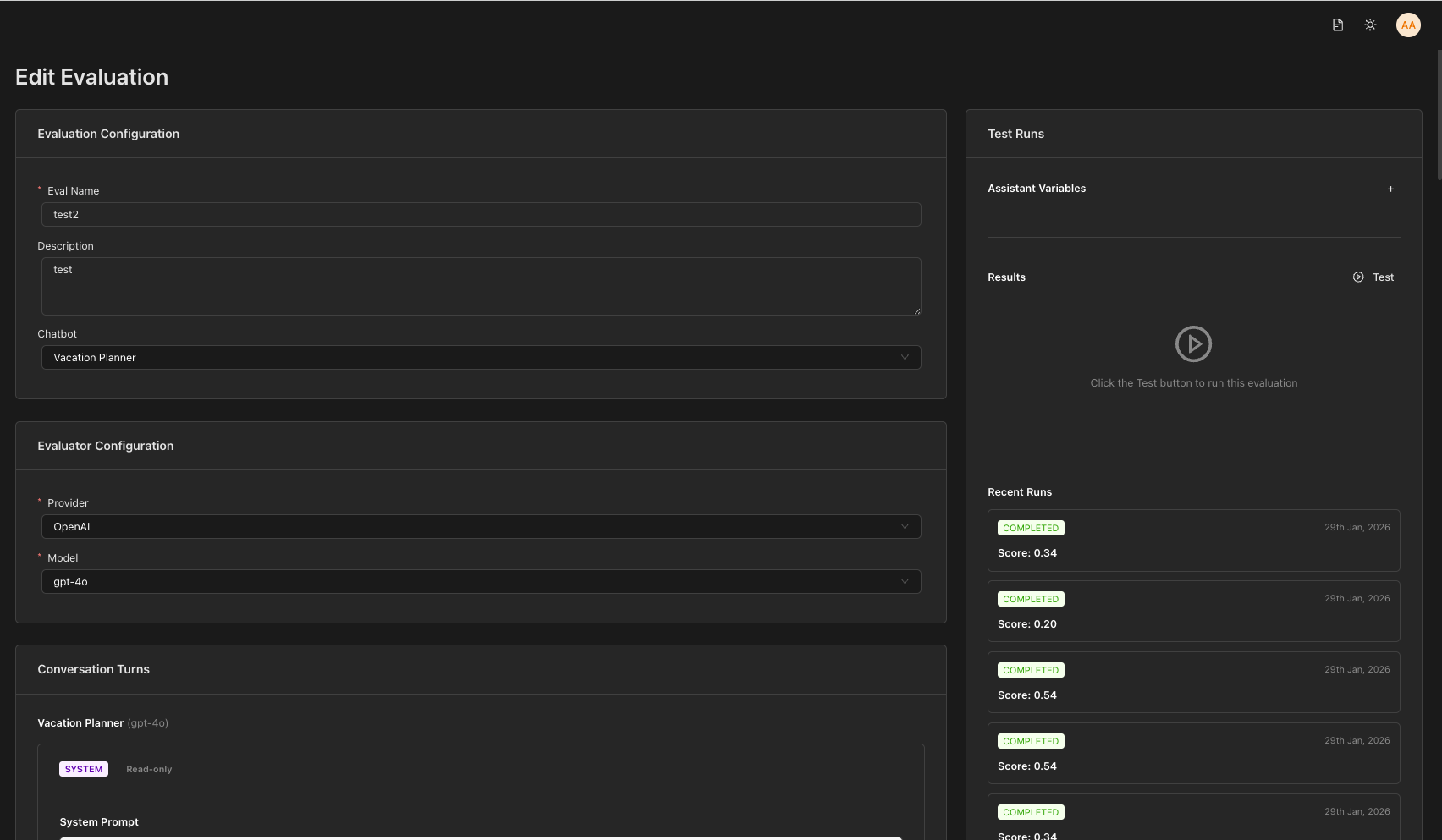
From the Edit Evaluation Page
- Navigate to Evaluations in the sidebar
- Click on an evaluation name to open the Edit Evaluation page
- Click the Run Test button in the right sidebar panel
Background Execution
When you click Run Test, the test starts running in the background. You can leave the page and continue working — the test will complete even if you navigate away.
Test Results Panel
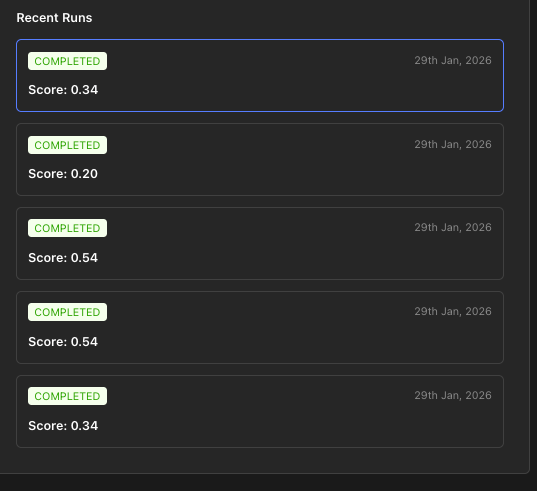
On the right side of the Edit Evaluation page, you'll see the Test Panel which displays:
- Run Test button: Click to start a new test
- Past 5 test results: A list of recent runs showing:
- Status (pending, running, completed, failed)
- Score/pass rate
- Conversation snapshot preview
- View Details button to see full results
Viewing Test Details
Click View Details on any test run to open the Run Details Page with:
- Complete conversation timeline
- Pass/fail status for each turn
- Judge responses and reasoning
- Token usage and timing information
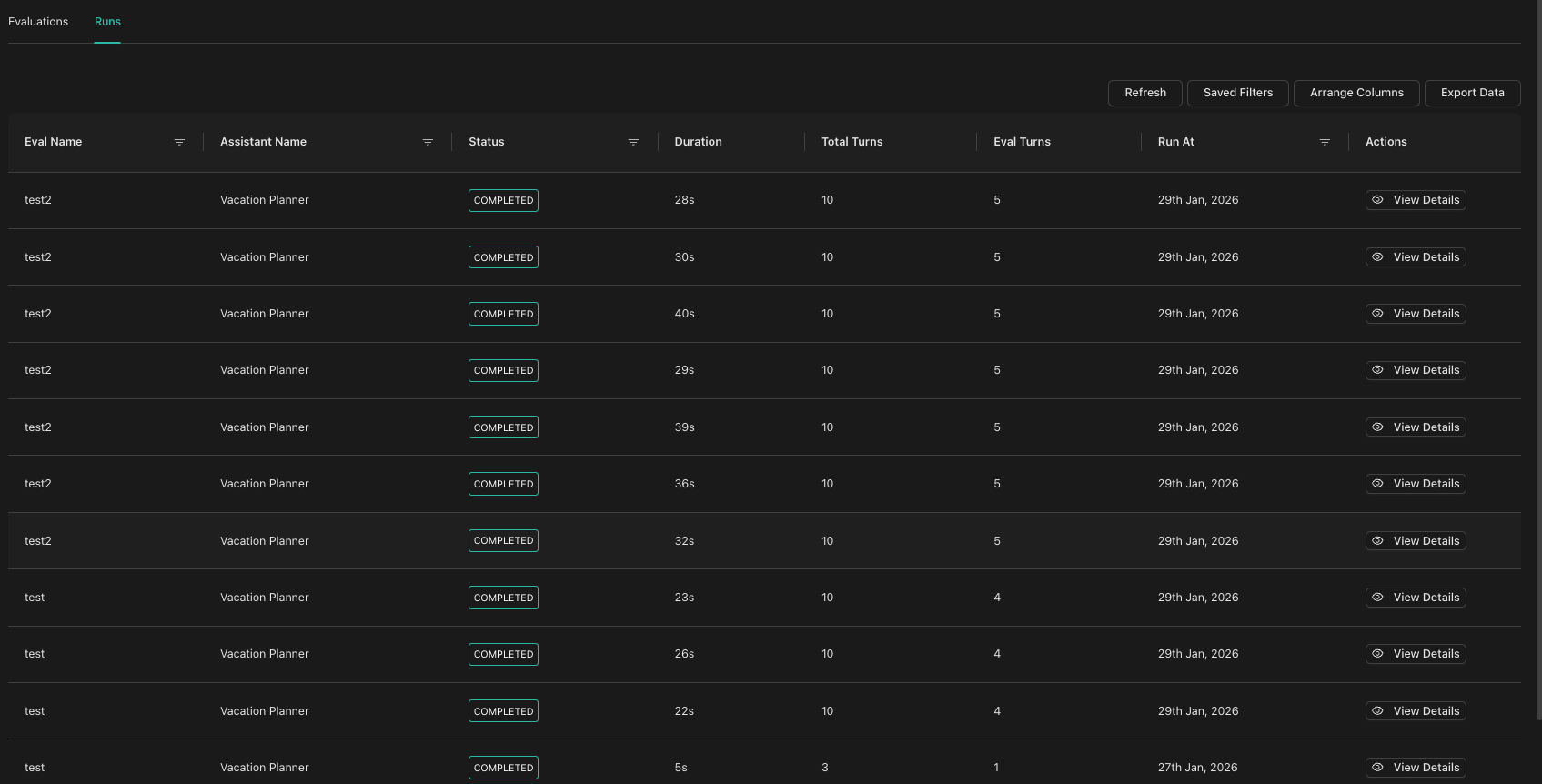
Runs Tab (All Runs)
To see all test runs across all evaluations:
- Go to the Evaluations page from the sidebar
- Click the Runs tab
- View a consolidated list of all test runs
- Filter by evaluation name to see runs for a specific evaluation
- Click View Details in the Actions column to see run details
Next Steps
- Viewing Results - Understand how to interpret test results