Viewing Test Results
After running a test, you can view detailed results to understand how your assistant performed.
Accessing Run Results
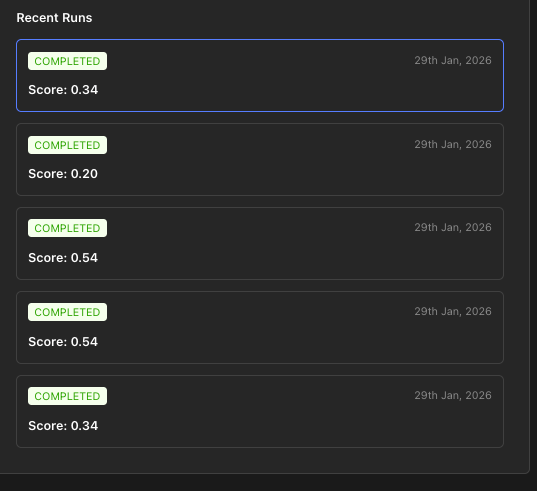
From the Edit Evaluation Page
- Click on an evaluation name to open the Edit page
- In the right Test Panel, find the test run you want to inspect
- Click View Details to open the Run Details Page
From the Runs Tab
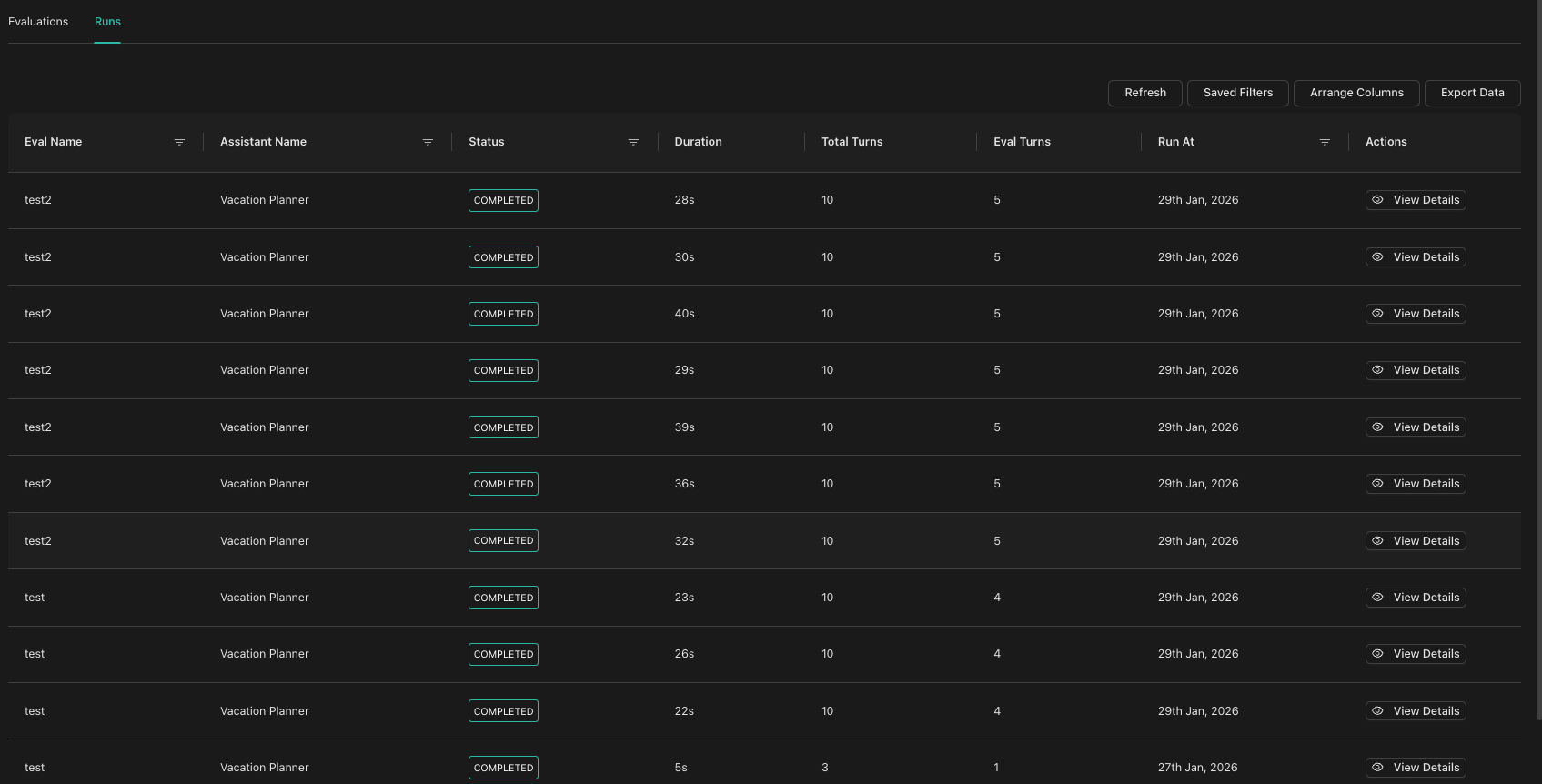
- Go to Evaluations and click the Runs tab
- Filter by evaluation name if needed
- Click View Details in the Actions column
Run Details Page
The Run Details Page shows comprehensive information about a test run.
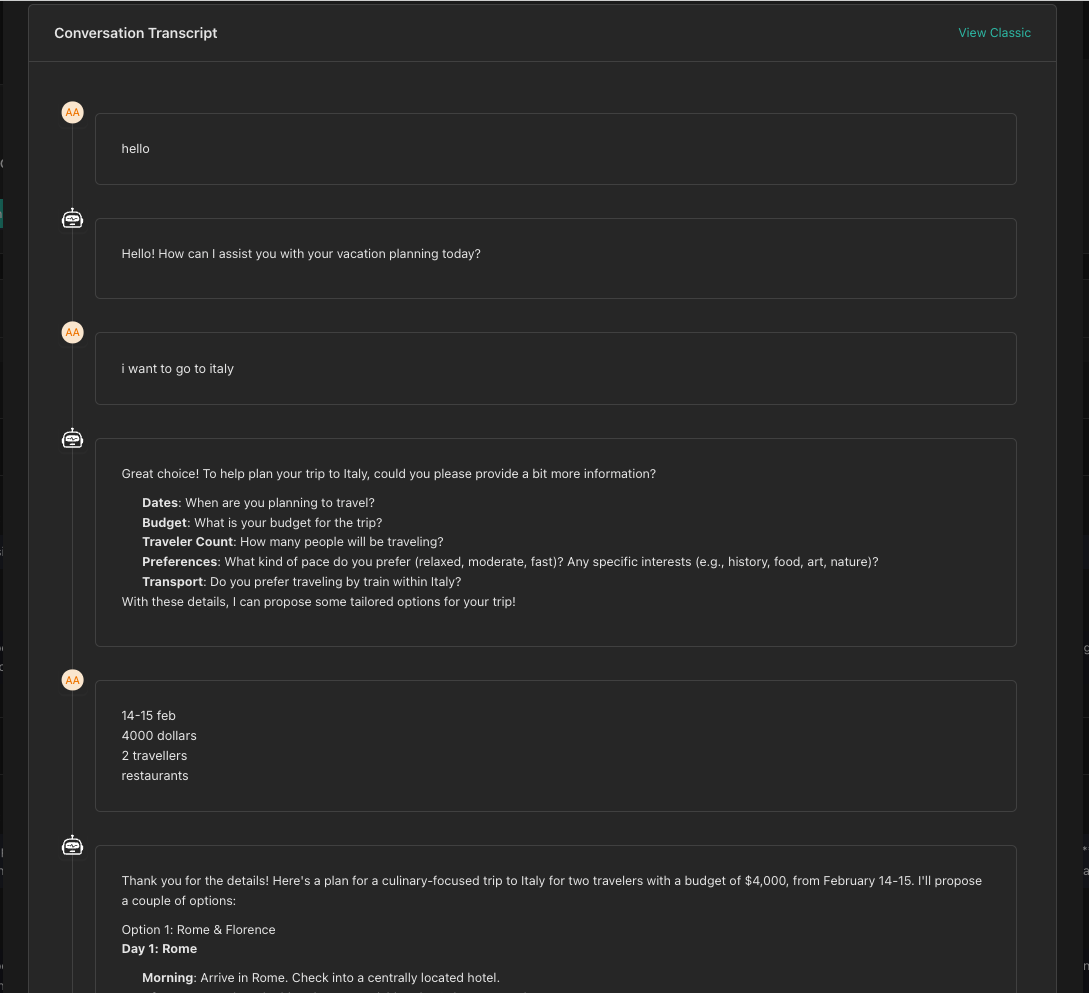
Conversation Timeline
The timeline displays the full conversation flow with:
- User messages: What the user said
- Assistant messages: The actual LLM responses or mock responses
- Tool responses: Tool execution results
- Pass/fail indicators: Visual status for evaluated turns
Results Table
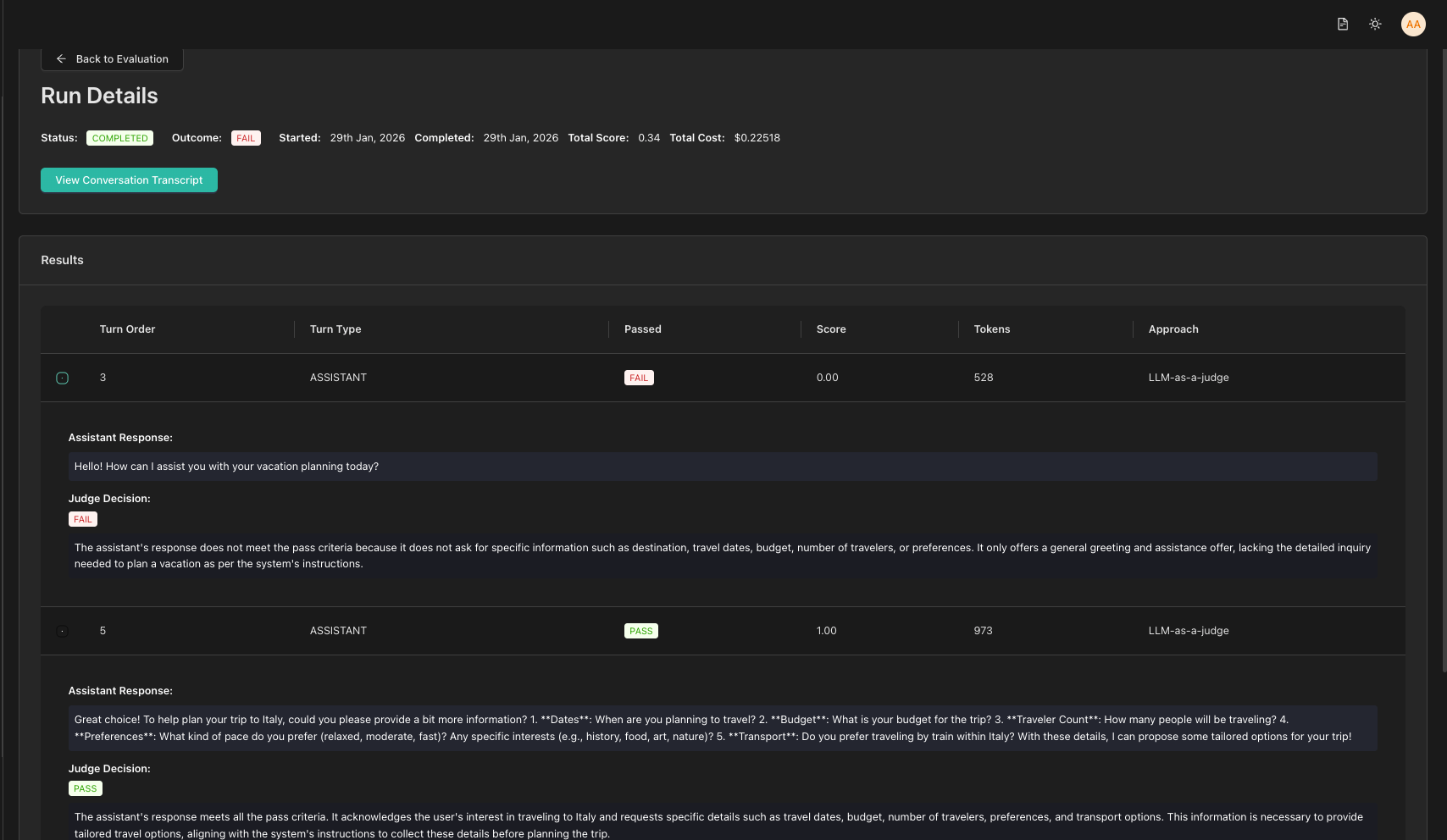
The results are displayed in an expandable table:
| Column | Description |
|---|---|
| Turn Order | The sequence number of the turn |
| Turn Type | USER, ASSISTANT, or TOOL_RESPONSE |
| Passed | ✓ PASS or ✗ FAIL |
| Score | Numeric score (if applicable) |
| Approach | LLM-as-a-Judge, Exact, or Regex |
| Judge Response | The evaluator's decision |
Click the expand icon on any row to see:
- Full assistant response
- Complete judge reasoning
- Token usage details
Understanding Judge Responses
For LLM-as-a-Judge evaluations, the judge provides:
- Decision:
passorfail - Reasoning: Why the judge made that decision
Debugging Failed Tests
When a test fails, check:
| What to Check | Solution |
|---|---|
| Assistant Response | Was the actual response appropriate? |
| Judge Response | Did the judge interpret criteria correctly? |
| Pass/Fail Criteria | Are criteria clear and specific? |
| Regex Pattern | Verify syntax and flags |
Next Steps
- Converting Conversations - Turn real conversations into test cases